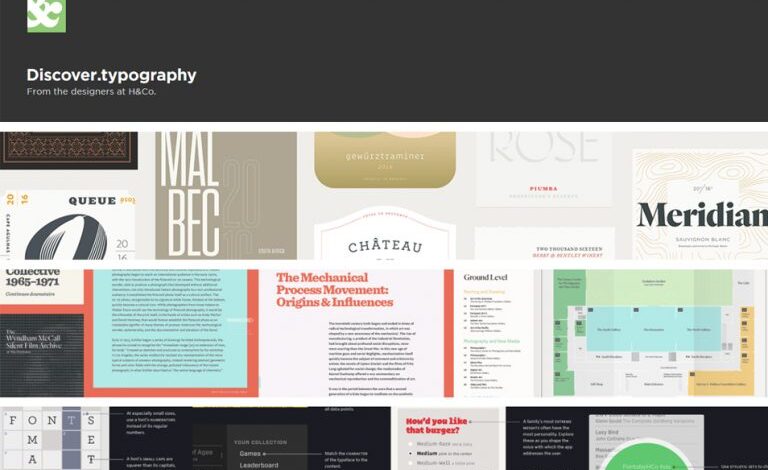
Typography Tools for Designers A Deep Dive
Typography tools for designers are more than just software; they’re the keys to unlocking visual communication’s full potential. From crafting elegant logos to setting the tone for entire websites, the right tools empower designers to create impactful and memorable experiences. This exploration dives into the world of typography software, comparing popular options, exploring advanced techniques, and looking at the future of this crucial design element.
We’ll cover everything from web design specifics using CSS to the nuances of print design, ensuring you’re equipped to handle any typographic challenge.
Whether you’re a seasoned professional or just starting your design journey, understanding the power of typography and mastering the right tools is essential. This guide aims to provide a comprehensive overview, helping you choose the perfect tools to match your workflow and creative vision. Get ready to elevate your design game!
Introduction to Typography Tools
Typography, often overlooked, is a cornerstone of effective design. It’s the art and technique of arranging type to make written language legible, readable, and appealing. From subtle shifts in font weight to strategic use of whitespace, typography significantly impacts how a design is perceived, influencing readability, brand identity, and overall aesthetic appeal. A well-executed typography scheme can elevate a design from mundane to memorable, while poor typography can severely detract from even the most stunning visuals.Typography tools are software applications or online services designed to assist designers in selecting, manipulating, and applying typefaces to their projects.
Their purpose is to streamline the typography workflow, offering features that enhance efficiency and precision in achieving the desired visual outcome. These tools can range from simple font viewers to sophisticated applications capable of advanced typographic adjustments.
Categories of Typography Tools
The typography tool landscape is diverse, encompassing various categories tailored to different needs and workflows. A clear understanding of these categories helps designers choose the right tool for their specific project.Web-based typography tools offer accessibility and often require no installation. Examples include online font pairing tools that suggest harmonious font combinations based on style and usage, or web-based editors that allow for real-time collaborative typography adjustments on web projects.
These tools often integrate directly into the designer’s workflow within a browser environment.Desktop applications, conversely, are installed directly onto a computer and typically offer a broader range of features and control. Software like Adobe InDesign, QuarkXPress, and Affinity Publisher are industry-standard desktop publishing applications with robust typography capabilities, including advanced kerning, tracking, and ligature controls. These applications provide a high degree of precision and customization.Plugins extend the functionality of existing software.
For example, many plugins are available for Adobe Photoshop and Illustrator that enhance typography options within these programs, adding features like advanced text effects or specialized font management capabilities. These plugins are often specialized and cater to specific design needs.
Popular Typography Tools
Choosing the right typography tool can significantly impact a designer’s workflow and the final quality of their work. The market offers a diverse range of options, each with its own strengths and weaknesses. This section will delve into three popular tools, comparing their features, user interfaces, and suitability for various design tasks. Understanding these differences will help you make an informed decision about which tool best fits your needs and design style.
Typography Tool Comparison
The following table compares three popular typography tools: Adobe Photoshop, Figma, and FontForge. These tools represent different approaches to typography, ranging from comprehensive design suites to specialized font editors. Consider your specific requirements and budget when evaluating them.
| Tool Name | Key Features | Pricing Model | Platform Compatibility |
|---|---|---|---|
| Adobe Photoshop | Advanced layer management, extensive font library access, precise control over type styling, powerful raster editing capabilities, integration with other Adobe Creative Cloud applications. Supports OpenType features and advanced typographic controls. | Subscription-based (part of Adobe Creative Cloud) | Windows, macOS |
| Figma | Real-time collaboration, vector-based design, robust text styling options, component-based design for efficient workflow, browser-based accessibility. Offers strong OpenType support and auto-layout features for responsive typography. | Freemium model (free plan with limitations, paid plans for increased storage and features) | Web browser (Windows, macOS, Linux), iOS, Android |
| FontForge | Open-source font editor, comprehensive font creation and editing capabilities, supports a wide range of font formats, allows for detailed glyph manipulation and kerning adjustments. A powerful tool for font designers but steeper learning curve. | Free and open-source | Windows, macOS, Linux |
User Interface and User Experience
Adobe Photoshop’s user interface is familiar to many designers, with a powerful yet complex layout. While this provides extensive control, it can feel overwhelming for beginners. Figma, in contrast, boasts a cleaner, more intuitive interface optimized for collaboration. Its browser-based nature ensures accessibility across various devices. FontForge, being a specialized font editor, presents a more technical interface geared towards advanced users comfortable with font metrics and glyph manipulation.
Its UI is less visually appealing but highly functional.
Strengths and Weaknesses for Different Design Tasks
Photoshop excels in tasks requiring raster-based image manipulation alongside typography, making it ideal for projects involving photo editing and intricate text effects. Its limitations lie in its subscription cost and less streamlined collaborative features compared to Figma. Figma shines in collaborative projects and web design, offering real-time collaboration and responsive design features. However, its raster editing capabilities are less advanced than Photoshop’s.
FontForge is indispensable for font designers, offering unparalleled control over font creation and modification, but its steep learning curve makes it less suitable for casual users or those unfamiliar with typographic concepts. For example, creating custom ligatures or designing entirely new fonts is easily done in FontForge but would be extremely difficult or impossible in Photoshop or Figma.
Specific Tool Deep Dive: Adobe Illustrator: Typography Tools For Designers
Adobe Illustrator, a vector graphics editor, offers a robust set of typography tools often overlooked by designers primarily focused on its illustration capabilities. However, its precision and scalability make it an ideal environment for crafting sophisticated typographic designs, especially for logos, branding, and print materials where pixel-perfect accuracy is paramount. This deep dive will explore its typographic features and demonstrate their application through a practical example.
Designing a Logo with Illustrator’s Typography Tools
Let’s create a simple, yet impactful, logo using Illustrator’s typography features. We’ll design a logo for a fictional coffee shop called “The Daily Grind.” The process will highlight the use of various tools and techniques.
- Creating the Text: First, we create the text “The Daily Grind” using the Type tool (T). We select a strong, legible sans-serif font like Montserrat or Open Sans. We experiment with different font weights (e.g., bold for “Grind,” regular for “The Daily”) to create visual hierarchy.
- Adjusting Kerning and Tracking: Using the Character panel (Window > Type > Character), we fine-tune the spacing between individual letters (kerning) and between groups of letters (tracking). For “Daily Grind,” we might slightly increase the kerning between “Daily” and “Grind” to improve readability and visual balance. We might also tighten the tracking slightly for “Grind” to make it appear more compact and powerful.
- Applying Ligatures: If our chosen font supports ligatures (a stylistic combination of two or more letters), we explore them in the Character panel. Some fonts offer ligatures for “fi,” “fl,” and other letter combinations. These can add subtle elegance and sophistication to the design.
- Adding Effects: We experiment with various effects, such as adding a subtle drop shadow or bevel and emboss to give the text more depth and visual interest. These effects can be found under Effect > Stylize or Effect > 3D.
- Color and Shape: We select a rich brown color for the text, reminiscent of coffee. We could also consider adding a simple graphic element, perhaps a coffee bean or a coffee cup icon, to complement the text.
Kerning, Tracking, and Ligatures in Adobe Illustrator
These three features are fundamental to precise typography. Mastering them significantly improves the overall aesthetic appeal and readability of text.
Kerning refers to adjusting the space between individual letter pairs. It allows for fine-grained control over letter spacing, ensuring optimal visual balance and readability. For example, the kerning between “A” and “V” might need adjustment because they can appear too close or too far apart depending on the font. Illustrator allows for manual kerning adjustments using the Character panel or by directly dragging the space between characters.
Tracking refers to adjusting the overall spacing between all characters within a selected block of text. It’s a global adjustment affecting the entire word or line, unlike kerning, which affects individual letter pairs. It’s useful for adjusting the density of text, making it tighter or looser to fit a specific space or create a particular visual effect.
Ligatures are stylistic alternatives to standard letter combinations. They replace standard letter pairings with a single, aesthetically pleasing glyph. For instance, a “fi” ligature merges the “f” and “i” into a single, flowing character. They add a touch of elegance and refinement to typography, but are only available in fonts that support them. Illustrator enables their activation or deactivation in the Character panel.
Advanced Typography Techniques in Adobe Illustrator
Illustrator provides capabilities beyond basic kerning, tracking, and ligatures.
- Creating Custom Glyphs: For ultimate control, designers can create and import custom glyphs, extending the typographic possibilities beyond the limitations of existing fonts.
- Working with OpenType Features: Illustrator supports OpenType fonts, allowing access to a wider range of typographic features, including stylistic alternates, swashes, and contextual alternates.
- Using Variable Fonts: Support for variable fonts offers dynamic control over font weight, width, and other attributes, providing a more fluid and adaptable typographic workflow.
- Combining Typography with Vector Graphics: Illustrator’s strength lies in its ability to seamlessly integrate typography with vector illustrations, creating complex and visually rich typographic compositions.
Typography Tools for Web Design
Web design presents a unique set of challenges for typographers. Unlike print, where you have precise control over the final output, the web introduces variables like screen size, browser rendering, and operating system differences. Ensuring consistent and aesthetically pleasing typography across all devices and browsers requires a different approach and a solid understanding of web technologies. This involves careful consideration of font selection, responsiveness, and accessibility.Web typography relies heavily on Cascading Style Sheets (CSS) to control the visual presentation of text.
CSS offers granular control over font families, sizes, weights, styles, spacing, and more, enabling designers to create visually appealing and readable web experiences. Understanding CSS is crucial for any web designer who wants to master typography.
The Role of CSS in Web Typography
CSS is the fundamental tool for managing typography on the web. It allows designers to define how text appears on a website, independent of the HTML content itself. This separation of content and presentation is a key principle of web development and contributes to cleaner, more maintainable code. Through CSS, designers can specify font families, ensuring consistent appearance across different systems, and adjust font sizes to optimize readability on various screen sizes.
Furthermore, CSS provides control over line height, letter spacing, word spacing, and text alignment, enabling fine-tuning for optimal visual appeal and readability. Without CSS, web typography would be limited and inconsistent.
Implementing Font Styles and Sizes Using CSS
CSS offers a variety of properties to manipulate font styles and sizes. Here are a few examples demonstrating how to apply different styles and sizes using CSS. Note that these styles would be applied within a `