Gradient Color Blur Tutorial A Designers Guide
Gradient color blur tutorial: Ever wondered how those dreamy, ethereal effects are created in images? It’s all about harnessing the power of gradient color blurs! From subtle enhancements to dramatic transformations, mastering this technique opens up a world of creative possibilities. We’ll explore different types of blurs, the software that makes it happen, and even some advanced tricks to elevate your designs.
This tutorial will walk you through everything from the basics of linear and radial gradient blurs to more advanced techniques like masking and using gradient maps. We’ll cover popular software options like Photoshop and GIMP, comparing their features and ease of use, so you can find the perfect tool for your skill level. Get ready to blur your way to stunning visuals!
Introduction to Gradient Color Blurs
Source: behance.net
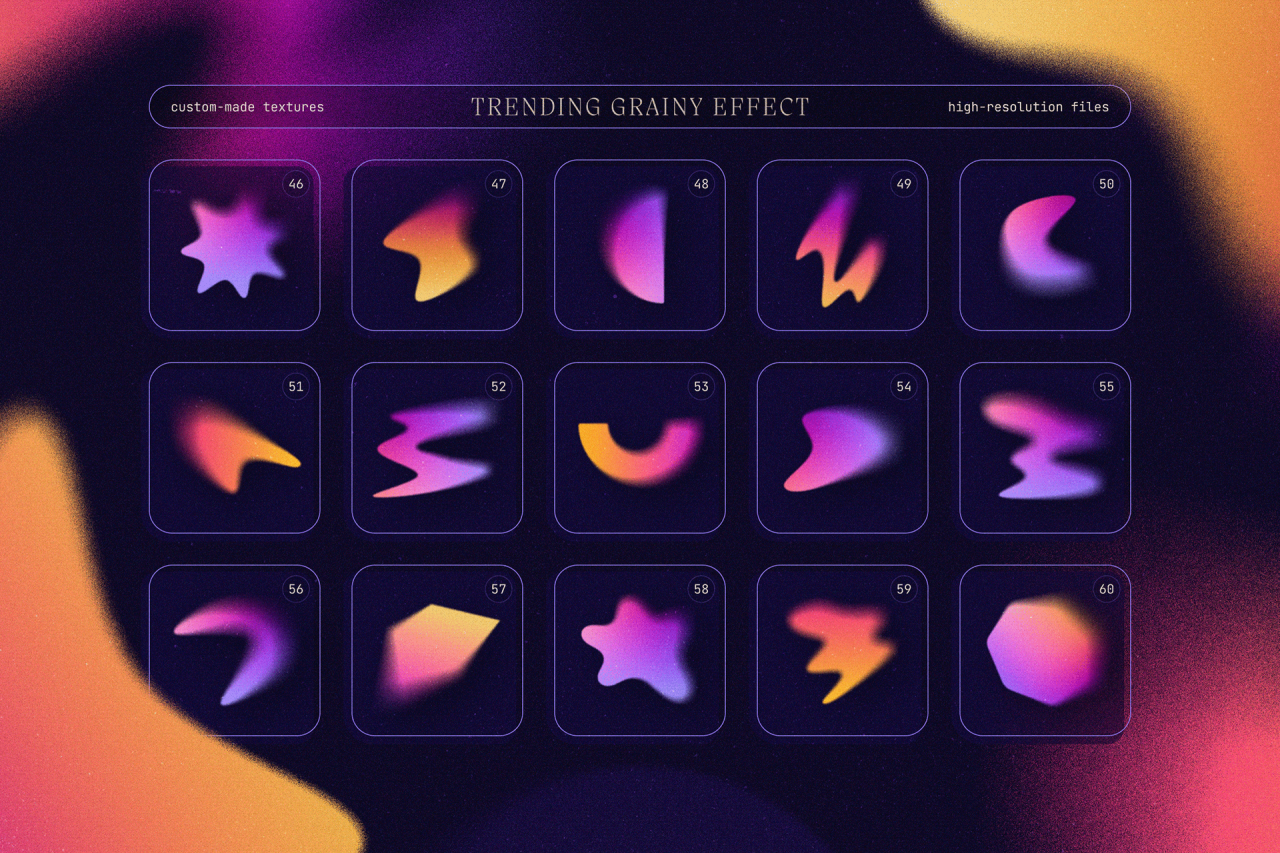
Gradient color blurs are a powerful image editing technique that smoothly transitions between two or more colors, creating visually appealing and often subtle effects. They’re more than just simple color fades; the blur element softens the transition, resulting in a softer, more integrated look than a sharp gradient. This technique adds depth, visual interest, and can even help unify disparate elements within a design.Gradient color blurs are used extensively in various design applications, enhancing visual appeal and improving the overall aesthetic quality of images and designs.
Understanding how they work and how to apply them effectively is a valuable skill for any designer or image editor.
Types of Gradient Color Blurs
Several types of gradient color blurs exist, each producing a distinct visual effect. The choice of gradient type depends largely on the desired outcome and the overall design aesthetic. The most common types are linear, radial, and angular gradients. Linear gradients transition smoothly between colors along a straight line. Radial gradients transition colors from a central point outwards, creating a circular or elliptical effect.
Angular gradients, less common but still useful, transition colors along an angle, creating a more dynamic and less predictable transition. Other more complex types exist, often created by combining these basic types or using custom shapes to define the transition path.
Examples of Gradient Color Blurs in Design
Gradient color blurs are incredibly versatile and find application in a broad range of design contexts. For example, a subtle linear gradient blur could be used to create a soft background for text, improving readability and visual appeal. Imagine a website header with a dark blue transitioning to a lighter blue at the bottom; the blur would soften the transition between the two shades, creating a calming and visually pleasing effect.
Alternatively, a radial gradient blur could be used to create a spotlight effect, drawing the viewer’s attention to a specific area of an image. Picture a product photograph where a radial gradient blur emanating from the product itself subtly highlights it against a darker background. The blur softens the harsh contrast, resulting in a more sophisticated and visually appealing image.
In website design, gradient color blurs can be used to create aesthetically pleasing transitions between sections or to subtly highlight important elements without being overly distracting. Many modern websites utilize this technique for background elements, creating a sense of depth and movement. Moreover, in graphic design, gradient blurs can be used to create unique textures and effects, adding depth and complexity to otherwise flat designs.
A poster featuring a linear gradient blur transitioning from a vibrant yellow to a deep orange, for example, could evoke feelings of warmth and energy.
Software and Tools for Creating Gradient Color Blurs
Creating stunning gradient color blurs is achievable with a variety of software options, ranging from industry-standard programs to free and accessible online tools. The best choice depends on your skill level, budget, and the complexity of your project. This section will explore some popular choices and guide you through the process using two distinct software packages.
Popular Image Editing Software for Gradient Color Blurs, Gradient color blur tutorial
Several image editing programs excel at creating gradient color blurs. Photoshop, GIMP, and various online tools each offer unique strengths and weaknesses. Photoshop, a professional-grade application, provides unparalleled control and advanced features but comes with a hefty price tag. GIMP, a free and open-source alternative, offers a powerful feature set, though its interface might feel less intuitive for beginners.
Online tools, often free and browser-based, are convenient for quick edits but typically lack the depth and versatility of dedicated software. The choice depends on your needs and technical proficiency.
Creating a Linear Gradient Blur in Photoshop
Photoshop’s robust tools make creating a linear gradient blur straightforward. First, open your image. Then, select the “Gradient Tool” (usually represented by a rectangle with a gradual color transition). Choose a linear gradient from the options bar at the top. Select your desired colors by clicking on the color swatches.
Finally, click and drag across your image to apply the linear gradient. To add a blur, select the “Filter” menu, then “Blur,” and choose the appropriate blur type (Gaussian Blur is a common choice). Adjust the blur radius to achieve your desired effect. The process allows for precise control over both the gradient and the blur intensity.
Creating a Linear Gradient Blur in GIMP
GIMP offers a similar workflow, albeit with a slightly different interface. Begin by opening your image in GIMP. Select the “Gradient Tool” from the toolbox. Choose “Linear Gradient” from the tool options. Select your desired colors using the color picker.
Click and drag across your image to apply the linear gradient. To apply a blur, navigate to “Filters” > “Blur” > “Gaussian Blur.” Adjust the radius as needed. While the functionality is comparable to Photoshop, the interface might require a slightly steeper learning curve for those unfamiliar with GIMP.
Comparison of Image Editing Tools for Gradient Color Blurs
| Software Name | Ease of Use | Feature Set | Cost |
|---|---|---|---|
| Adobe Photoshop | Intermediate to Advanced | Extensive features, precise control, advanced blur options | Subscription-based |
| GIMP | Beginner to Intermediate | Comprehensive feature set, comparable to Photoshop but with a steeper learning curve | Free and Open Source |
| Photopea (Online Tool) | Beginner-friendly | Limited features compared to desktop software; sufficient for basic gradient blurs | Free (with limitations) |
Techniques for Achieving Different Gradient Blur Effects
Creating stunning gradient blur effects involves more than just slapping a gradient onto a blurred image. The subtle interplay of techniques and settings significantly impacts the final aesthetic, allowing for a wide range of moods and styles, from soft and dreamy to sharp and dramatic. Understanding these techniques is key to mastering the art of gradient blur.
The key to achieving different gradient blur effects lies in controlling the sharpness of the gradient itself and how it interacts with the underlying image. We’ll explore how blending modes influence the final look, and delve into creating a realistic bokeh effect, a popular technique in photography and digital art.
Soft vs. Hard Gradient Blurs
Soft gradient blurs create a gentle, ethereal feel. This is achieved by using a gradual transition between colors in the gradient itself, and often by applying a Gaussian blur to the gradientbefore* it’s applied to the image. The result is a smooth, diffused effect that blends seamlessly with the underlying image. Conversely, hard gradient blurs feature a more abrupt change between colors, resulting in a sharper, more defined transition.
This can be achieved by using a gradient with fewer color stops or by reducing the blur radius applied to the gradient. The contrast between the sharp gradient and the potentially blurred underlying image creates a strong visual impact. Think of a sunset over a cityscape – the soft transition of the sky’s colors contrasts beautifully with the sharper details of the buildings.
Blending Mode Effects on Gradient Blurs
Blending modes significantly alter how the gradient interacts with the base image. Experimentation is key, but some modes produce consistently interesting results. For instance, the ‘Soft Light’ blending mode can create a subtle, nuanced effect where the gradient gently modifies the colors of the underlying image without overwhelming it. ‘Overlay’ can create a more vibrant effect, emphasizing the contrast between the gradient and the base image.
‘Multiply’ darkens the underlying image, intensifying shadows and creating a moody atmosphere. The choice of blending mode depends entirely on the desired aesthetic; there’s no single “correct” mode. Imagine using ‘Multiply’ to create a dramatic, nighttime scene with a dark, purple gradient overlaying a cityscape at night, versus using ‘Screen’ to lighten a daytime scene with a bright, sunny gradient.
Achieving a Realistic Bokeh Effect
Bokeh, the aesthetic quality of the blur in out-of-focus areas of an image, can be simulated effectively using gradient color blurs. The key is to create a gradient that mimics the circular highlights often seen in bokeh. This involves using radial gradients, possibly with a slight feathered edge, to create the soft, circular glow. The colors in the gradient should also be carefully chosen to reflect the light source and the overall mood of the image.
For example, a warm, yellowish gradient might be suitable for simulating the bokeh from a warm light source, while cooler blues and purples could be used for a different atmosphere. The blur radius applied to the gradient will determine the size and softness of the bokeh circles, allowing for fine-tuning of the effect. Consider an image of a city at night with streetlights; the simulated bokeh, achieved through a gradient blur, would enhance the overall atmosphere and realism, drawing attention to the light sources.
Creating Custom Gradient Color Palettes
Crafting the perfect gradient blur effect often hinges on selecting the right color palette. A well-chosen palette can dramatically enhance the mood and overall aesthetic of your design, while a poorly chosen one can detract from it. Understanding how to create and utilize custom palettes is a crucial skill for any designer working with gradient blurs.
Harmonious color combinations are key to creating visually appealing gradient blurs. The human eye is naturally drawn to certain color relationships, and understanding these relationships can help you create gradients that are both pleasing and effective. Experimentation is key, but starting with a few fundamental principles can significantly streamline the process.
I’ve been experimenting with gradient color blur tutorials lately, trying to perfect that dreamy, ethereal look. To really boost my skills, I’ve been diving into some video editing techniques, which led me to this awesome resource on getting it on with youtube – seriously, it’s helped me understand how to better present my gradient color blur tutorials online.
Now I’m applying those video tips to create more engaging content showcasing my gradient effects.
Sample Color Palettes for Gradient Blurs
Below are five sample palettes, each offering a unique mood and visual effect. These palettes demonstrate how different color combinations can evoke various feelings and create distinct visual experiences within a gradient blur context. Consider the emotional impact of each palette when choosing for your projects.
- Palette 1: Serene Sunset (Warm and Tranquil): #F2994A (light orange), #E05D23 (orange), #D02C00 (dark orange), #A82200 (dark red-orange), #801800 (deep red-brown). This palette evokes a feeling of calm and warmth, perfect for designs related to nature, relaxation, or autumnal themes. The gradient would transition smoothly from a bright, optimistic orange to a deep, grounding red-brown.
- Palette 2: Ocean Depth (Cool and Mysterious): #4682B4 (steel blue), #225EA8 (darker blue), #19487D (deep blue), #003366 (navy blue), #001A33 (very dark blue). This cool palette creates a sense of depth and mystery, ideal for designs associated with water, technology, or space. The gradient would gradually deepen from a light, airy blue to a rich, almost black navy.
- Palette 3: Vibrant Spring (Energetic and Joyful): #F7DC6F (pale yellow), #ABEBC6 (light green), #76D7B1 (bright green), #42B78A (darker green), #218862 (deep green). This palette is bright and cheerful, perfect for designs that need to convey energy, happiness, or springtime freshness. The gradient transitions smoothly from a sunny yellow to a rich, verdant green.
- Palette 4: Twilight Sky (Dramatic and Atmospheric): #6D8299 (light grey-blue), #3C5A75 (darker grey-blue), #233E54 (deep blue-grey), #162A3C (dark blue-grey), #0A1929 (almost black). This palette is sophisticated and dramatic, suitable for designs requiring a sense of elegance, mystery, or nighttime ambiance. The gradient smoothly transitions from a pale twilight blue to a deep, almost black hue.
- Palette 5: Tech Glow (Modern and Futuristic): #00FFFF (cyan), #008080 (teal), #006666 (darker teal), #004C4C (deep teal), #003333 (dark teal). This palette is sleek and modern, perfect for technology-related designs or anything aiming for a futuristic feel. The gradient provides a smooth transition from a bright, almost electric cyan to a dark, muted teal.
Generating Custom Gradient Color Palettes
Creating your own gradient palettes is surprisingly straightforward, thanks to readily available online tools and software features. Many resources allow for intuitive color selection and manipulation, empowering you to experiment and refine your palettes until you achieve the desired aesthetic.
Several online tools offer interactive color palette generators. These typically allow you to input a starting color or use pre-set color schemes as a base, then adjust the hue, saturation, and brightness of subsequent colors to create a gradient. Some tools even offer suggestions based on color theory principles, helping you create visually pleasing and harmonious combinations.
Many graphic design software packages (like Adobe Photoshop, Illustrator, and GIMP) also include powerful tools for creating and manipulating color palettes. These programs often provide features for creating gradients directly within the software, allowing for precise control over color transitions and overall gradient appearance. They frequently include color pickers and advanced color adjustment tools, enabling highly customized gradient creation.
Advanced Gradient Blur Techniques: Gradient Color Blur Tutorial
Now that we’ve covered the fundamentals, let’s delve into some more advanced techniques to elevate your gradient blur artistry. Mastering these will allow you to create truly unique and stunning visual effects. We’ll explore the power of masking, gradient maps, and a method for achieving a realistic light leak effect.
Masking for Selective Gradient Blurs
Masking is a crucial technique for controlling the precise application of your gradient blur. Instead of blurring the entire image, you can carefully select specific areas to receive the effect. This allows for intricate control and avoids unwanted blurring in critical parts of your image. Imagine a portrait where you want to subtly blur the background, drawing attention to the sharp subject.
A mask allows you to achieve this seamlessly. The process involves creating a mask layer—typically a black and white image where white represents the area affected by the blur and black represents the unaffected area. Then, you apply the gradient blur to the masked layer, leaving the unmasked areas crisp and clear. The level of blur can be adjusted based on the opacity of the white areas within the mask.
A soft-edged mask will create a gradual transition between the blurred and sharp areas, for a more natural look.
Utilizing Gradient Maps for Unique Color Transitions
Gradient maps offer a powerful way to manipulate the color palette of your image using a gradient as a reference. Instead of directly applying a gradient blur, you use the gradient as a lookup table. Each tonal value in your image is mapped to a corresponding color in the gradient. This allows you to create dramatic and unexpected color shifts and transitions.
For instance, a simple black-to-white gradient can be transformed into a vibrant sunset gradient, completely altering the mood and color scheme of your image. Experimenting with different gradient shapes and colors allows for endless creative possibilities. You can create gradients with smooth transitions or sharp, distinct color changes depending on your artistic goals. The result is a highly stylized and unique effect that goes beyond simple blurring.
Creating a Realistic Light Leak Effect
Light leaks, those charming imperfections often seen in older photographs, add a touch of nostalgia and visual interest. Gradient blurs are perfect for simulating this effect. The key is to use a radial gradient, starting with a bright, saturated color at the center and fading to transparency at the edges. The color choice should complement the overall image tone.
Positioning the gradient carefully, perhaps overlapping slightly with the edges of the image, can mimic the appearance of light spilling in from an external source. Adjusting the blur radius and opacity will help refine the effect, creating a subtle or more pronounced light leak as desired. By overlaying multiple gradients with varying colors and opacities, you can create a more complex and realistic light leak simulation, capturing the unpredictable and organic nature of real light leaks.
Illustrative Examples and Visual Demonstrations
Source: behance.net
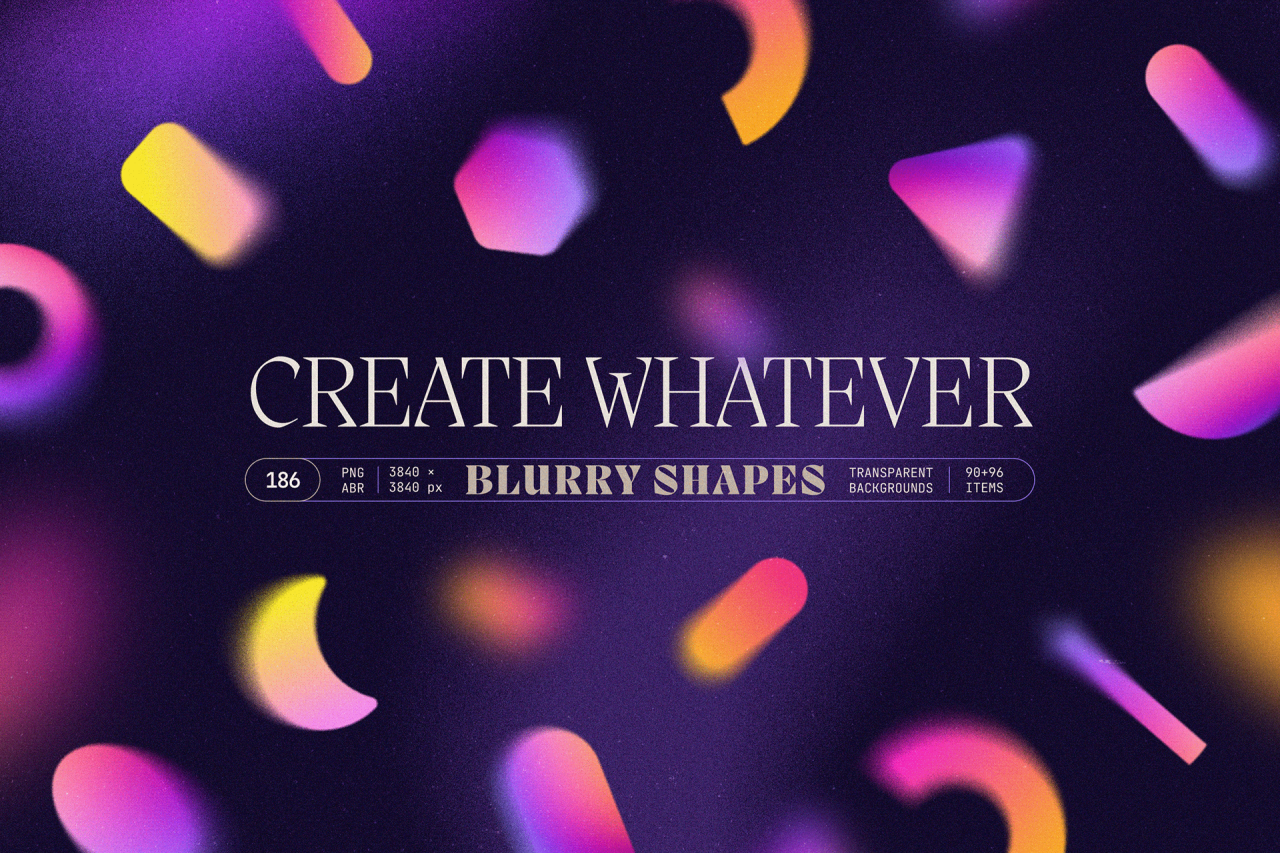
Let’s explore the practical application of gradient color blurs with some real-world examples. Seeing these techniques in action will solidify your understanding and inspire your own creative uses. We’ll examine how gradient blurs impact mood, focus, and overall design aesthetics across different mediums.
Gradient Blur on a Landscape Photograph
Imagine a breathtaking sunset landscape photograph, perhaps a vast beach with a fiery orange and deep purple sky. Applying a gradient blur, starting with a sharp focus on the foreground beach and gradually blurring towards the sky, creates a sense of depth and tranquility. The color choices – warm oranges and purples transitioning to a softer, almost ethereal blue at the top – enhance the peaceful mood.
The lighting, already dramatic in the original photograph, is subtly emphasized by the blur, with the brighter parts of the sunset appearing more vibrant against the increasingly soft background. Contrast is carefully managed; the sharp foreground remains detailed while the blurred background provides a soft counterpoint. Saturation is slightly increased in the foreground to maintain vibrancy while the blurred sky benefits from a subtle desaturation, creating a dreamlike effect.
The gradient blur doesn’t simply obscure the details; it guides the viewer’s eye, creating a visual journey from the sharp reality of the beach to the hazy beauty of the sky.
Gradient Blur on a Portrait Photograph
Consider a portrait photograph of a person with striking features. Applying a radial gradient blur, centered on the subject’s eyes, keeps the eyes sharp and in focus while gently blurring the background. The choice of blur color could be a subtle, muted version of the dominant colors in the background, ensuring the subject remains the focal point. This technique enhances the subject’s features, drawing attention to their eyes and expression.
The intensity of the blur is crucial; a subtle blur adds a professional touch, while an overly intense blur can distract from the subject. The overall aesthetic is refined and elegant, with the background providing context without competing with the subject’s captivating presence. For example, using a soft, cool-toned gradient blur behind a portrait taken in a warm-toned environment could create a sense of calm and serenity, contrasting beautifully with the warmth of the subject.
Gradient Blur as a Website Background Element
A website design featuring a subtle linear gradient blur as a background can create a sophisticated and modern aesthetic. Imagine a website about environmental conservation, using a gradient that transitions from a deep green to a lighter teal. This choice evokes feelings of nature and serenity, perfectly aligning with the website’s theme. The direction of the gradient, from top to bottom, creates a sense of stability and order.
The type of gradient – a smooth, linear transition – ensures a clean and uncluttered look. This background element establishes a visual hierarchy, allowing the website’s content to stand out against the calm backdrop. The gradient blur, being subtle, doesn’t overwhelm the design but subtly adds depth and visual interest, creating a visually pleasing and professional website.
Outcome Summary
So there you have it – a journey into the captivating world of gradient color blurs! From understanding the fundamental concepts to mastering advanced techniques, we’ve covered a lot of ground. Remember, practice is key. Experiment with different color palettes, blending modes, and software to find your unique style. Embrace the blur, and let your creativity shine through!
Q&A
What’s the difference between a soft and hard gradient blur?
A soft gradient blur features a gradual, smooth transition between colors, while a hard gradient blur has a more abrupt, defined edge between colors.
Can I use gradient blurs on videos?
Yes! Many video editing software programs offer similar gradient blur capabilities. The techniques are largely transferable.
Are there any free online tools for creating gradient blurs?
Yes, several free online image editors offer basic gradient blur functionality. Search for “online photo editor” and look for features like “blur” or “gradient”.