
The Graphic Designers Guide to Buying a Laptop 3 Things to Consider
The graphic designer s guide to buying a laptop 3 things to consider – The Graphic Designer’s Guide to Buying a Laptop: 3 Things to Consider – So, you’re a graphic designer, and your trusty laptop is finally showing its age? Or maybe you’re just starting out and need the perfect machine to fuel your creative fire? Finding the right laptop can feel overwhelming, but it doesn’t have to be. This guide breaks down the three most crucial aspects to consider before you hit that “buy” button, ensuring you get a machine that’s powerful, precise, and perfectly suited to your workflow.
Choosing a laptop for graphic design isn’t just about browsing pretty pictures; it’s about investing in a tool that will directly impact the quality of your work and your overall productivity. We’ll delve into the essential components – processor power, screen quality, and storage – helping you navigate the tech jargon and make an informed decision. Get ready to find your perfect design companion!
Processor Power & Performance for Graphic Design
Source: indianexpress.com
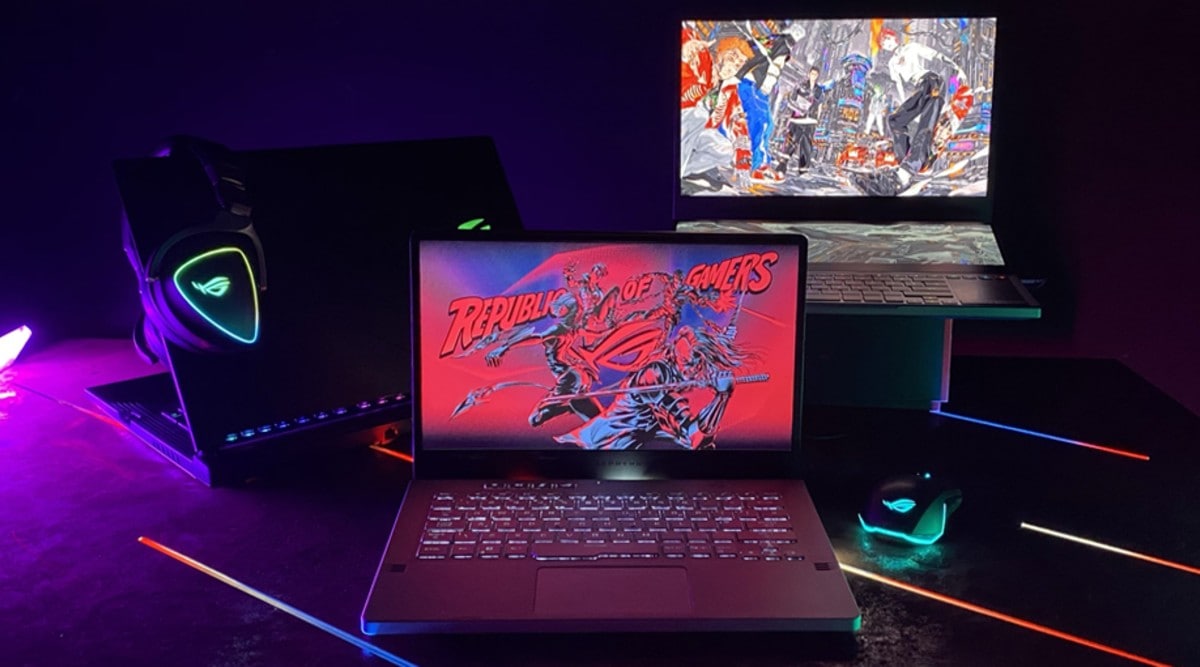
Choosing the right processor and graphics card is crucial for a smooth and efficient graphic design workflow. The demands of Adobe Creative Suite and other design software can vary greatly, making informed decisions about your hardware essential to avoid frustrating slowdowns and bottlenecks. This section will delve into the specifics of processor and GPU choices for graphic designers.
Intel Core i5 vs. Intel Core i7 for Graphic Design
The choice between an Intel Core i5 and an Intel Core i7 processor often hinges on budget and the intensity of your design work. Generally, Core i7 processors offer more cores and higher clock speeds, resulting in faster processing times for complex tasks. For simple photo editing or vector graphics creation, a Core i5 might suffice. However, for tasks like 3D rendering, video editing, or working with very large files, the extra processing power of a Core i7 will significantly reduce rendering times.
The impact of clock speed is directly proportional to performance; a higher clock speed translates to faster instruction execution. Similarly, a higher core count allows for parallel processing, enabling the CPU to handle multiple tasks simultaneously, significantly boosting overall performance. For instance, rendering a high-resolution image in Photoshop might take several minutes less with a Core i7 compared to a Core i5, especially if the Core i7 has a higher clock speed and more cores.
Dedicated Graphics Cards (GPUs) for Graphic Design
While the CPU handles general processing tasks, the GPU excels at parallel processing, making it ideal for graphic-intensive operations. A dedicated GPU is highly recommended for graphic designers, especially those working with high-resolution images, video editing, or 3D modeling. A dedicated GPU significantly accelerates rendering times, making your workflow smoother and more efficient. For smooth operation of the Adobe Creative Suite, a minimum of a mid-range dedicated GPU is recommended.
Lower-end integrated graphics might struggle with complex tasks, leading to significant performance slowdowns and frustrating delays. For example, tasks such as applying filters in Photoshop or rendering complex scenes in After Effects will benefit greatly from the power of a dedicated GPU.
GPU Performance Comparison for Graphic Design
The following table compares the performance of different GPUs suitable for graphic design, categorized by price range. Note that prices can fluctuate based on market conditions and specific models.
| GPU | Manufacturer | Approximate Price Range (USD) | Suitability for Graphic Design |
|---|---|---|---|
| Nvidia GeForce RTX 3060 | Nvidia | $300 – $400 | Good for most graphic design tasks, suitable for beginners and intermediate users. |
| AMD Radeon RX 6600 | AMD | $250 – $350 | Comparable performance to the RTX 3060, offering a good balance of price and performance. |
| Nvidia GeForce RTX 3070 | Nvidia | $450 – $600 | Excellent performance for demanding tasks like 3D rendering and high-resolution video editing. |
| AMD Radeon RX 6700 XT | AMD | $400 – $550 | A strong competitor to the RTX 3070, providing similar performance levels. |
Screen Quality & Calibration for Visual Accuracy
Choosing the right laptop screen is crucial for graphic designers. Accurate color representation is paramount for ensuring your designs look their best across different devices and print outputs. A poor screen can lead to hours of wasted time correcting color imbalances and ultimately affect the quality of your final product. This section will delve into the essential aspects of screen quality that directly impact your workflow.
Color Accuracy and Resolution
Color accuracy and resolution are fundamental aspects of a graphic designer’s laptop screen. Resolution, measured in pixels (e.g., 1920×1080, 3840×2160), determines the sharpness and detail of the image. Higher resolution means more pixels, leading to crisper images and finer details, essential for intricate designs. Color accuracy, however, is about how faithfully the screen reproduces colors compared to a standard.
This is often expressed in terms of color spaces. Two common color spaces are sRGB, a widely used standard for web and general display, and Adobe RGB, which offers a wider gamut of colors, better suited for print design and photography. The difference lies in the range of colors each space can represent; Adobe RGB encompasses a broader spectrum, including richer greens and blues, while sRGB is more limited but provides better compatibility across devices.
Choosing a laptop with a screen that covers a large percentage of the Adobe RGB gamut is ideal for most graphic design work, though sRGB compatibility remains important for web design.
Screen Technologies: IPS, OLED, and VA
Different screen technologies impact color reproduction, viewing angles, and overall image quality. IPS (In-Plane Switching) panels are known for their wide viewing angles and accurate color reproduction, making them a popular choice for graphic designers. They offer consistent color accuracy even when viewed from the side. OLED (Organic Light-Emitting Diode) screens boast incredibly deep blacks, vibrant colors, and high contrast ratios, resulting in stunning visuals.
However, they can be more expensive and may suffer from potential burn-in issues over extended use. VA (Vertical Alignment) panels offer a compromise between IPS and OLED. They generally have good contrast ratios and deep blacks, but their viewing angles might be slightly narrower than IPS. For graphic design, IPS remains a reliable and widely recommended choice for its excellent color accuracy and consistent viewing experience, while OLED offers a visually impressive, but potentially more expensive, alternative.
Calibrating Your Laptop Screen
Accurate color representation is not solely dependent on the screen’s inherent capabilities. Regular calibration ensures the colors displayed on your screen match the intended colors in your designs. This is particularly crucial for consistency across different devices and print outputs.
- Acquire a Colorimeter: Invest in a colorimeter, a device that measures the color output of your screen. Datacolor SpyderX Pro and X-Rite i1Display Studio are popular options.
- Install Calibration Software: Download and install calibration software compatible with your colorimeter. Most colorimeters come with their own software.
- Run the Calibration Process: Follow the software’s instructions to calibrate your screen. This typically involves the colorimeter measuring your screen’s output and the software adjusting the settings to match a specific color profile (e.g., sRGB or Adobe RGB).
- Create and Save a Profile: Save the resulting color profile. This profile will be used by your operating system and applications to ensure accurate color representation.
- Regular Calibration: Repeat the calibration process every few months or whenever you notice a shift in color accuracy. Environmental factors and screen aging can affect color consistency.
Storage, RAM, and Portability for Workflow Efficiency
Source: thebackbuffer.com
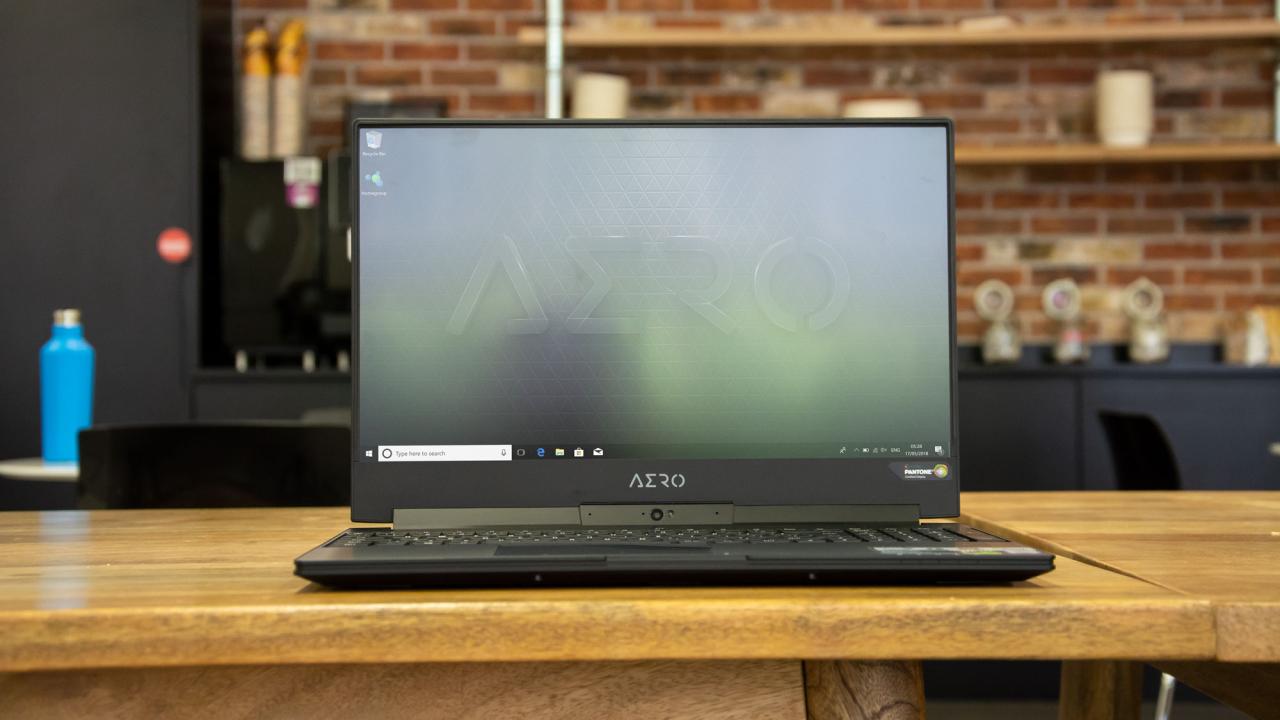
Choosing the right laptop for graphic design isn’t just about the screen and processor; workflow efficiency hinges heavily on storage, RAM, and the laptop’s portability. These factors directly impact how quickly and easily you can work on your projects, from loading large files to transporting your equipment. Let’s dive into the specifics.
RAM Requirements for Graphic Design Software
Sufficient RAM is crucial for smooth performance in graphic design. Demanding software like Adobe Photoshop, Illustrator, and InDesign require significant memory to handle large files, multiple layers, and complex effects. A minimum of 16GB of RAM is recommended for most graphic design tasks. Less than this, and you’ll experience frustrating slowdowns, lag, and potential crashes, especially when working with high-resolution images and videos.
For truly intensive work, such as 3D modeling or video editing alongside graphic design, consider upgrading to 32GB or even 64GB of RAM. The impact of insufficient RAM manifests as significant delays in processing, freezing, and the inability to run multiple applications concurrently. Imagine trying to edit a high-resolution image with numerous layers while also having several browser tabs open – with insufficient RAM, your system will struggle, leading to a frustrating and unproductive workflow.
SSD vs. HDD for Graphic Designers
The choice between a Solid State Drive (SSD) and a Hard Disk Drive (HDD) significantly impacts your workflow. SSDs offer dramatically faster read and write speeds compared to HDDs. This translates to quicker boot times, faster application loading, and significantly reduced wait times when opening and saving large files – a game-changer for graphic designers constantly juggling massive image files and project folders.
While HDDs offer higher storage capacities at lower costs per gigabyte, the speed advantage of an SSD far outweighs the cost difference for professional graphic design work. The time saved by the faster access speeds allows for more efficient project completion. Consider an SSD as your primary drive for the operating system and applications, and potentially supplement with an HDD for large-scale archival storage if budget is a major concern.
For example, a 1TB SSD will likely be sufficient for most graphic designers, providing ample space for the operating system, applications, and current projects. A secondary HDD could then be used to archive completed projects.
Laptop Size, Weight, and Battery Life, The graphic designer s guide to buying a laptop 3 things to consider
The size and weight of your laptop directly impact its portability, especially if you work on location or travel frequently. The following table compares common laptop sizes:
| Laptop Size | Weight (approx.) | Battery Life (approx.) | Portability Considerations |
|---|---|---|---|
| 13-inch | 2-3 lbs | 6-8 hours | Highly portable, ideal for travel; may have a smaller screen. |
| 15-inch | 4-5 lbs | 7-10 hours | Good balance between portability and screen size; suitable for most users. |
| 17-inch | 6+ lbs | 8-12 hours | Less portable, better for stationary use; offers a larger screen. |
Consider the balance between screen real estate and portability. A smaller, lighter laptop is easier to carry but may sacrifice screen size, potentially impacting workflow. A larger laptop offers a more comfortable workspace but can be cumbersome for travel. Battery life is also crucial, especially for on-location work. Aim for a laptop with at least 6-8 hours of battery life to ensure uninterrupted productivity.
Software Compatibility and Operating System

Source: kartal24.com
Choosing the right operating system is crucial for a graphic designer. Your OS dictates which software you can run and significantly impacts your overall workflow. While both Windows and macOS offer robust options, they cater to different preferences and software ecosystems. Understanding these differences is key to selecting a laptop that seamlessly integrates with your design process.The compatibility of various graphic design software with different operating systems is a major factor to consider.
Windows boasts broader software support, including a wider range of industry-standard applications and niche tools. macOS, while offering a strong selection of professional design software, often has a more limited pool of options, particularly when considering less mainstream or specialized applications. However, macOS is known for its user-friendly interface and its strong integration with Apple’s ecosystem, making it a popular choice among designers who value ease of use and a consistent workflow.
Operating System Compatibility with Popular Graphic Design Software
The choice between Windows and macOS often boils down to software compatibility. Adobe Creative Cloud, a suite essential for many designers, runs flawlessly on both operating systems. However, certain niche applications or plugins might only be available for one OS. For instance, some 3D modeling software might have better support on Windows due to its wider driver support and hardware compatibility.
Conversely, certain specialized publishing software might be more optimized for macOS. It’s crucial to research the specific software you intend to use and check its system requirements and compatibility before purchasing a laptop.
Essential Graphic Design Software and System Requirements
Understanding the system requirements of your essential design software is critical. Overlooking this can lead to performance bottlenecks and frustrating workflow disruptions. The minimum and recommended specifications vary significantly depending on the complexity of the software and the tasks you’ll perform.
| Software | Minimum System Requirements (Example) | Recommended System Requirements (Example) |
|---|---|---|
| Adobe Photoshop | 8GB RAM, Intel Core i5, 2GB VRAM | 16GB RAM, Intel Core i7, 4GB VRAM |
| Adobe Illustrator | 8GB RAM, Intel Core i5, 2GB VRAM | 16GB RAM, Intel Core i7, 4GB VRAM |
| Adobe InDesign | 8GB RAM, Intel Core i5, 2GB VRAM | 16GB RAM, Intel Core i7, 4GB VRAM |
| Affinity Photo | 8GB RAM, Intel Core i5, 2GB VRAM | 16GB RAM, Intel Core i7, 4GB VRAM |
Note: These are example system requirements and can vary based on the specific version of the software and features used. Always check the official software website for the most up-to-date information.
The Importance of Driver Updates for Optimal Performance
Regular driver updates are essential for maximizing the performance of your graphics card and other hardware components. Outdated drivers can lead to compatibility issues, performance lags, and even system crashes. Graphics card drivers, in particular, are critical for smooth rendering and processing of complex visuals. Keeping them updated ensures optimal performance and access to the latest features and bug fixes.
Similarly, updating other drivers, such as those for your trackpad, display, and other peripherals, contributes to a more stable and efficient workflow. Most operating systems provide automatic updates, but manually checking for updates from the manufacturer’s website is always a good practice, especially for professional-grade graphics cards.
Budget and Long-Term Value: The Graphic Designer S Guide To Buying A Laptop 3 Things To Consider
Investing in a laptop for graphic design is a significant financial commitment. It’s not just about the initial purchase price; you need to consider the long-term costs and the overall value you’ll get from your machine. A well-researched purchase can save you money and headaches down the line, while a rushed decision can lead to costly repairs or premature obsolescence.
This section will guide you through setting a realistic budget and understanding the factors that contribute to a laptop’s long-term value.Setting a realistic budget requires careful consideration of several factors. First, determine your absolute maximum spending limit. Then, research the specifications you need (as discussed in previous sections) and find laptops that meet those needs within your budget.
Remember to factor in the cost of software – Adobe Creative Cloud subscriptions can be substantial – and any potential upgrades you might need in the future (like increased RAM). For example, if your maximum budget is $2000, allocate a portion for the initial purchase, a portion for software subscriptions (e.g., $50/month), and a contingency fund for potential repairs or upgrades.
Avoid stretching your budget too thin, as this could lead to compromising on essential features or opting for a lower-quality machine that will require more frequent maintenance.
So, you’re a graphic designer looking for the perfect laptop? My recent post, “The Graphic Designer’s Guide to Buying a Laptop: 3 Things to Consider,” covers the essentials, but remember that your workflow might change drastically if you’re planning to expand your reach with video. Check out my guide on getting it on with youtube to see how YouTube can boost your career, which will in turn inform your laptop choice.
Ultimately, choosing the right machine depends on your evolving needs, including video editing if you’re going down the YouTube route.
Budget Allocation and Prioritization
When allocating your budget, prioritize components based on their impact on your workflow. A powerful processor and a high-quality screen are typically more crucial than a massive storage drive for most graphic designers. Consider a tiered approach: allocate the largest portion of your budget to the processor and screen, followed by RAM and storage, and then finally consider portability features and other factors.
Prioritizing this way ensures that your investment is focused on the aspects that will most significantly affect your productivity and the quality of your work. For example, a $1500 budget could be allocated as follows: $700 for the processor and screen, $500 for RAM and storage, and $300 for the remaining components and accessories.
Brand Reputation, Customer Support, and Warranty
Choosing a reputable brand is crucial for long-term value. Established brands like Apple, Dell, HP, and Lenovo generally offer better customer support, longer warranties, and more reliable components. While less-known brands might offer lower initial costs, they often lack the same level of support, potentially leading to higher repair costs or difficulty troubleshooting problems. Check independent review sites for information on the reliability of specific brands and models.
A longer warranty period is also beneficial; it provides peace of mind and protects against potential manufacturing defects. For instance, a three-year warranty might seem more expensive upfront but can save you considerable money on repairs in the long run.
Research and Comparison
Before making a purchase, thoroughly research different laptop models and compare their specifications. Don’t rely solely on manufacturer specifications; read independent reviews from reputable sources such as tech websites and user forums. Pay close attention to benchmarks for processor performance, screen color accuracy, and storage speed. Websites like PCMag, Laptop Mag, and AnandTech offer detailed reviews and comparisons.
Comparing specifications from multiple sources allows you to identify any inconsistencies and gain a more objective understanding of the laptop’s capabilities. For example, compare the benchmark scores of different processors from various websites to determine which one best suits your needs and budget.
Final Wrap-Up
Ultimately, buying a laptop for graphic design is a balancing act between performance, budget, and personal needs. By carefully considering processor power for smooth rendering, screen quality for accurate color representation, and sufficient storage and RAM for efficient workflow, you can find a machine that meets your creative demands without breaking the bank. Remember to research reviews, compare specs, and choose a brand you trust.
Happy designing!
FAQ Corner
What operating system is best for graphic design?
Both macOS and Windows offer excellent compatibility with graphic design software. macOS is often praised for its intuitive interface and seamless integration with Apple hardware, while Windows offers broader software compatibility and a wider range of hardware options.
How important is battery life for a graphic design laptop?
Battery life is crucial, especially if you work on the go. Look for a laptop with at least 6-8 hours of battery life on a single charge. The exact requirement will depend on your workflow and the power demands of your software.
Should I get a touchscreen laptop for graphic design?
Touchscreens can be beneficial for some graphic design tasks, particularly those involving photo editing or digital painting. However, they’re not essential, and many designers prefer the precision and control of a traditional trackpad or mouse.