Tag: effects

  • Mastering Audio and Sound Design Workflows within Adobe After Effects

    Mastering Audio and Sound Design Workflows within Adobe After Effects

    While Adobe After Effects has long been established as the industry standard for motion graphics and visual effects, its capabilities regarding audio processing remain a critical yet often underutilized component of the post-production pipeline. For many motion designers, the software is primarily viewed through the lens of visual manipulation; however, the integration of sound is fundamental to the efficacy of any digital narrative. Professional editors and motion artists recognize that audio constitutes approximately fifty percent of the viewer’s experience, providing the emotional resonance and rhythmic pacing that visual elements alone cannot achieve. This comprehensive guide examines the technical architecture of audio tools within After Effects, offering a detailed analysis of workflow optimization, interface management, and advanced synchronization techniques.

    The Technical Evolution of Audio in Motion Graphics

    The history of Adobe After Effects, which debuted in 1993 under the Company of Science and Art (CoSA), was initially focused on layering and compositing. As the software evolved through its acquisition by Aldus and eventually Adobe, the demand for sophisticated audio handling grew in tandem with the rise of digital video. Today, while After Effects is not a Digital Audio Workstation (DAW) like Adobe Audition, it provides a robust set of tools designed to facilitate "visual-to-audio" synchronization.

    In the contemporary media landscape, where short-form content for social media and high-impact commercial trailers dominate, the ability to manipulate sound directly within the composition environment is a prerequisite for efficiency. Industry data suggests that a significant majority of motion designers—estimated at over 70%—utilize the Creative Cloud ecosystem, making the interoperability between After Effects and other audio-centric applications a cornerstone of modern production.

    The Basics of Working with Sound in After Effects

    Navigating the Audio Interface and Control Panels

    Effective audio management in After Effects begins with a mastery of its specific interface elements. Unlike video editing software that prioritizes a horizontal timeline for audio tracks, After Effects treats audio files as individual layers within a composition, requiring a different organizational mindset.

    The primary control center for sound is the Audio panel, accessible via the Window menu. This panel functions as a visual monitor, displaying the decibel (dB) levels during playback. It is important to note that the Audio panel serves two distinct purposes: monitoring and localized volume adjustment. The slider within this panel affects only the preview levels, allowing an editor to lower the volume during a session without altering the actual output levels of the final render.

    Complementing the Audio panel is the Preview panel. This is where the technical parameters of the "RAM Preview" are defined. Users must ensure that the audio icon is active within this panel to hear sound during playback. A common technical hurdle for beginners is the absence of sound during previews, which is almost always a result of disabled audio settings in the Preview panel or a mismatch in the hardware’s audio output preferences.

    Chronology of an Optimized Audio Workflow

    A professional workflow in After Effects follows a logical progression to ensure that sound and vision remain in perfect alignment. This chronology is essential for maintaining project integrity, especially as compositions grow in complexity.

    The Basics of Working with Sound in After Effects
    1. Asset Importation and Layering: Audio files, typically in WAV or MP3 format, are imported into the project bin and dragged into the composition. Professionals recommend using uncompressed WAV files (48kHz, 24-bit) to avoid the synchronization drift sometimes associated with compressed formats.
    2. Visualizing the Waveform: Once the layer is in the timeline, the "LL" keyboard shortcut is used to reveal the waveform. This visualization is the most critical step for precision editing.
    3. Marker Placement: Editors often play the audio and tap the "*" (asterisk) key on the numeric keypad to drop markers on the beat. This creates a visual roadmap for timing visual transitions.
    4. Volume Normalization and Fading: Using the "L" shortcut, editors access the Audio Levels property to set keyframes for fades and balancing.
    5. Final Synchronization Check: Using specific preview modes to ensure that the visual effects trigger at the exact millisecond of the audio peak.

    Essential Shortcuts for Efficient Sound Design

    In high-pressure production environments, speed is dictated by the use of keyboard shortcuts. After Effects provides several commands that are specific to audio playback and visualization:

    • Spacebar: The standard shortcut for a cached preview. If the green bar (RAM cache) is not full, the audio may stutter or play at an incorrect speed.
    • Numeric Keypad 0: Initiates a full RAM Preview, which renders both video and audio frames into the system’s memory for real-time playback.
    • Numeric Keypad Decimal (.): This is the "Audio Only" preview shortcut. It allows the editor to listen to the soundscape without the overhead of rendering complex visual layers, which is invaluable for checking the rhythm of a voiceover or a music track.
    • LL (Double L): Instantly expands the selected layer to show the audio waveform. Seeing the peaks and valleys of the sound wave allows for "eyes-on" editing, which is often more accurate than relying on auditory feedback alone due to potential hardware latency.

    The Waveform Methodology: Precision Over Audition

    A significant challenge when working in After Effects is the inherent latency of the software. Because After Effects renders frames on the fly, audio playback can occasionally fall out of sync with the visual display if the computer’s RAM is overtaxed. Consequently, industry experts advocate for the "Waveform Methodology."

    Instead of adjusting the timing of a visual effect while listening to the audio, editors are encouraged to align keyframes with the physical peaks in the waveform display. This ensures that even if the preview lags, the mathematical relationship between the visual frame and the audio sample remains perfect. This approach is particularly vital when creating "kinetic typography" or beat-matched transitions where a single frame of misalignment can be jarring to the viewer.

    Audio Effects and Signal Processing

    While After Effects offers a suite of internal audio effects located under the Effects > Audio menu, they are generally intended for minor adjustments rather than comprehensive mixing.

    The Basics of Working with Sound in After Effects
    • Bass & Treble: Useful for quick tonal shifts to make a voiceover more prominent.
    • Reverb: Can be used to create a sense of space, such as making a sound feel as though it is occurring in a large hall to match a visual environment.
    • Stereo Mixer: Allows for basic panning between the left and right channels, which can be keyframed to follow the movement of an object across the screen.

    However, for complex tasks like noise reduction, multi-band compression, or spectral frequency display editing, the "Edit in Adobe Audition" command is the preferred professional route. This dynamic link allows for non-destructive editing in a dedicated audio environment, with changes reflecting back in the After Effects timeline automatically.

    Advanced Automation: Converting Audio to Keyframes

    One of the most powerful features in After Effects is its ability to bridge the gap between sound and motion through data conversion. By right-clicking an audio layer and selecting Keyframe Assistant > Convert Audio to Keyframes, the software analyzes the amplitude of the audio signal and generates a "Null Object" containing the data.

    This Null Object, typically named "Audio Amplitude," contains sliders for the Left Channel, Right Channel, and Both Channels. These sliders represent the volume of the audio as a numerical value between 0 and 100 (or higher, depending on the peak). Motion designers can then use "Expressions"—small snippets of code—to link visual properties like scale, opacity, or blur intensity to these sliders. This technique allows for the creation of organic, reactive animations that "dance" to the music with mathematical precision.

    Industry Implications and Market Trends

    The demand for integrated audio-visual skills is reflected in current employment data. According to the U.S. Bureau of Labor Statistics, the demand for special effects artists and animators is projected to grow 8% through 2032. Employers increasingly seek "T-shaped" professionals—those who have deep expertise in motion graphics but also possess functional knowledge of sound design and audio engineering.

    The Basics of Working with Sound in After Effects

    The integration of AI-driven tools within the Adobe Creative Cloud is further transforming this landscape. Features such as "Enhance Speech" and "Auto-Ducking" are beginning to migrate from Premiere Pro and Audition into the broader ecosystem, suggesting a future where After Effects may handle audio with even greater automation.

    Conclusion and Best Practices

    In conclusion, while After Effects is fundamentally a visual tool, its audio capabilities are robust enough to handle the requirements of high-end motion design when utilized correctly. The key to success lies in understanding the software’s limitations—such as preview latency—and leveraging its strengths, particularly the waveform visualization and the conversion of audio data into keyframes.

    For professionals aiming to produce cinematic quality content, the following best practices are recommended:

    • Always edit audio-visual sync based on the waveform peaks.
    • Use the "Audio Only" preview to verify the pacing of the edit.
    • Utilize Null Objects and Audio Amplitude for reactive animations.
    • Offload complex sound mixing to Adobe Audition via Dynamic Link.

    By mastering these techniques, motion designers can ensure that their work not only looks visually stunning but also carries the professional auditory impact necessary for modern digital storytelling. As the industry continues to evolve, the fusion of sound and motion will remain the hallmark of high-quality production, making these skills indispensable for any serious artist in the field.

  • How to Reduce Aliasing and Over-Sharpening on Action Camera Footage in After Effects

    How to Reduce Aliasing and Over-Sharpening on Action Camera Footage in After Effects

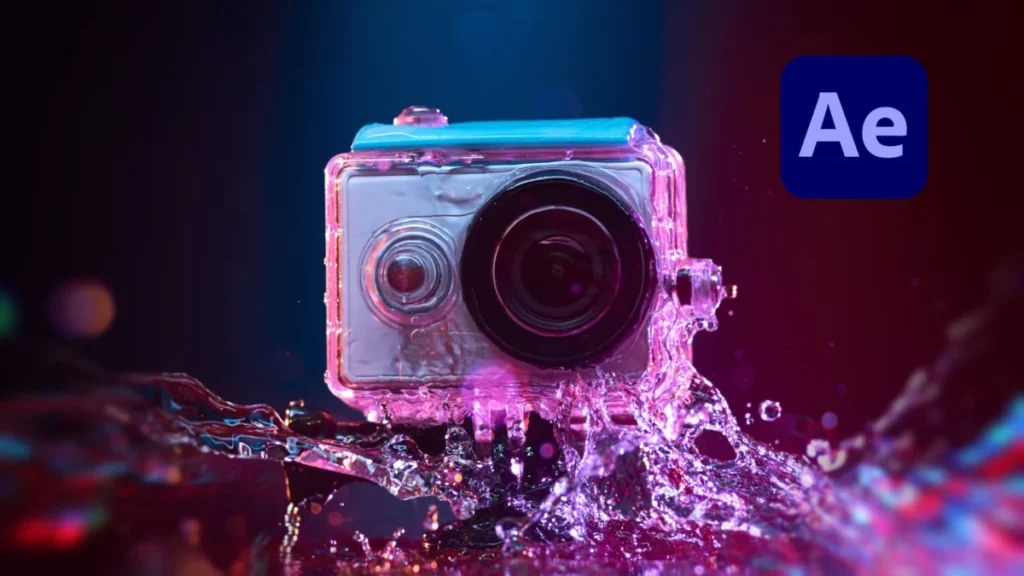
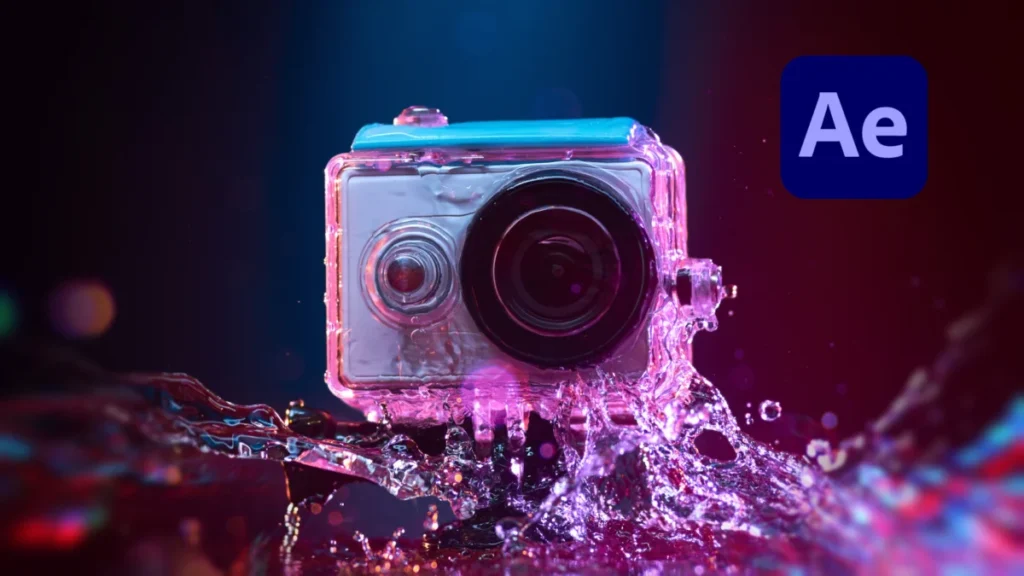
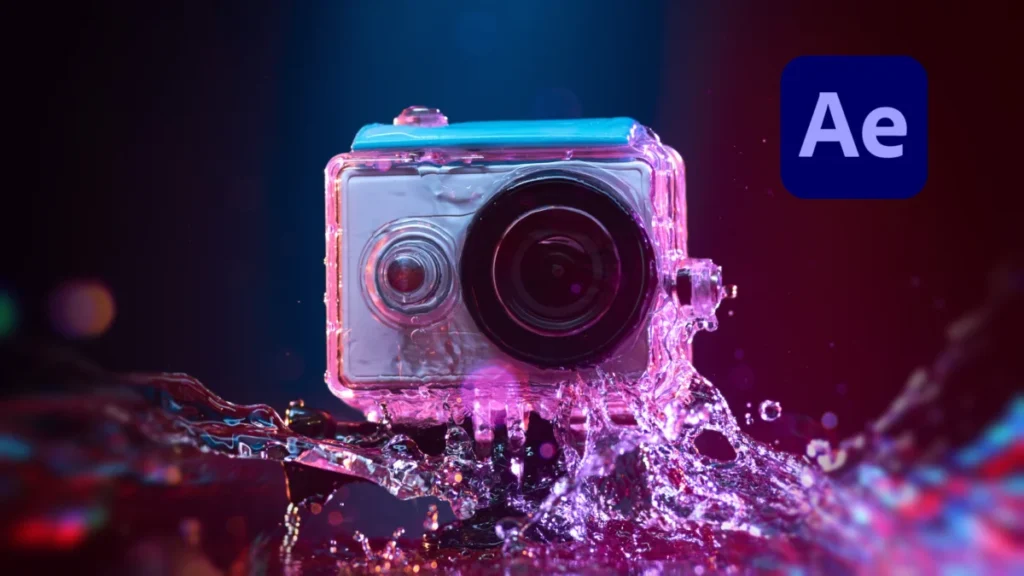
    The digital cinematography landscape has seen a significant shift toward miniaturized high-performance hardware, with action cameras, drones, and mobile devices now capable of recording 4K and 5K resolutions. However, this technological leap has brought a persistent visual artifact to the forefront of post-production challenges: aliasing. While action cameras from manufacturers like GoPro, DJI, and Insta360 offer unprecedented portability, the physical limitations of their small image sensors often result in "jagged" edges and artificial over-sharpening that can undermine the professional quality of a production. Industry experts and post-production specialists are increasingly turning to advanced software solutions, such as the Fast Approximate Anti-Aliasing (FXAA) plugin for Adobe After Effects, to mitigate these issues and restore a more organic, cinematic aesthetic to digital footage.

    The Technical Mechanics of Aliasing in Digital Imaging

    Aliasing is a distortion artifact that occurs when the fine detail in a scene exceeds the resolution of the camera’s sensor, leading to a phenomenon known as sampling error. In the context of video, this manifests as "stair-stepping" on diagonal lines or shimmering patterns on repetitive textures, such as water ripples, brick walls, or fabric. This issue is mathematically grounded in the Nyquist-Shannon sampling theorem, which dictates that a signal must be sampled at a rate at least twice its highest frequency to be accurately reconstructed.

    Quick Tip: Best Way to Reduce Sharpness on Action Cameras in Post

    Because action cameras utilize extremely small sensors—often 1/2.3-inch or 1/1.7-inch—to maintain their compact form factor, the individual pixels are packed tightly together. To compensate for the lack of raw optical detail provided by these small lenses, manufacturers often apply aggressive digital sharpening algorithms in-camera. While this makes the image appear "crisp" on small smartphone screens, it exacerbates aliasing when viewed on professional monitors or large displays, creating high-contrast edges that look unnatural and "digital."

    A Chronology of Post-Production Mitigation Strategies

    The evolution of fixing aliasing in post-production has moved through several distinct phases as computing power has increased. In the early days of digital video, editors had limited tools to combat these artifacts without degrading the overall image quality.

    1. The In-Camera Era (2010–2015): Early adopters of action cameras were forced to rely on physical filters. Neutral Density (ND) filters were used to introduce motion blur, which naturally masked some aliasing, though it did not solve the underlying sampling issue.
    2. The Gaussian Blur Approach (2015–2018): As software like After Effects became industry standards, editors began applying a global Gaussian Blur to footage. By setting a blur radius of 0.5 to 2.0 pixels, the "jaggies" were softened. However, this was a destructive method, as it reduced the sharpness of the entire frame, including areas that did not suffer from aliasing.
    3. The Post-Processing Anti-Aliasing Revolution (2019–Present): Borrowing techniques from the video game industry, developers began creating edge-aware plugins. These tools, like FXAA, utilize intelligent algorithms to identify high-contrast diagonal edges and apply localized smoothing while leaving the rest of the image untouched.

    Data Analysis: The Hardware Constraint and Market Impact

    Market data from 2023 indicates that the global action camera market is projected to reach over $10 billion by 2030, driven largely by content creators and extreme sports enthusiasts. As the demand for high-quality social media content grows, the disparity between high-resolution expectations and small-sensor realities becomes a critical bottleneck.

    Quick Tip: Best Way to Reduce Sharpness on Action Cameras in Post

    Technical benchmarks show that while a full-frame cinema camera might have a pixel pitch of 6.0 microns or larger, an action camera often operates with a pixel pitch of 1.5 to 2.0 microns. This reduction in surface area per pixel leads to lower dynamic range and higher noise floor, which the internal image signal processor (ISP) attempts to "fix" through over-sharpening. Post-production workflows that ignore these artifacts risk high rejection rates from broadcast networks and streaming platforms, which maintain strict quality control standards regarding "shimmering" and "moiré" artifacts.

    The FXAA Solution: A Deep Dive into Edge Detection

    The introduction of the FXAA plugin by Plugin Everything has provided After Effects users with a high-performance, free tool to combat these specific artifacts. Unlike traditional blurs, FXAA (Fast Approximate Anti-Aliasing) was originally developed by Timothy Lottes at NVIDIA as a high-speed alternative to Multi-Sample Anti-Aliasing (MSAA).

    The plugin functions by analyzing the luminance of the pixels to detect edges. Once an edge is identified, the algorithm calculates the orientation of the "stair-step" and applies a sub-pixel blend. This process effectively "fills in" the gaps of the jagged edge with weighted averages of the surrounding pixels. Because it is a post-processing effect, it is incredibly computationally efficient, allowing for real-time playback in many After Effects compositions.

    Quick Tip: Best Way to Reduce Sharpness on Action Cameras in Post

    Implementation Workflow in Adobe After Effects

    For editors looking to integrate this into their pipeline, the process is streamlined to minimize downtime. The standard professional workflow involves three primary steps:

    1. Import and Composition: Action camera footage is imported into a composition that matches the native frame rate and resolution. It is often recommended to perform color correction prior to anti-aliasing, as boosting contrast can make aliasing more visible.
    2. Applying the FXAA Plugin: By navigating to the "Effect" menu and selecting "Plugin Everything > FXAA," the algorithm is applied to the layer. The default settings are designed to handle standard 4K aliasing, but the effect can be "stacked"—applying the plugin twice—for particularly egregious sharpening artifacts.
    3. Comparison and Refinement: Using the "Effect Controls" toggle, editors compare the original "crunchy" edges of the footage against the smoothed FXAA version. The goal is to achieve a look that mimics the "Optical Low Pass Filter" (OLPF) found in high-end cinema cameras like those from RED or ARRI, which naturally prevents aliasing before the light even hits the sensor.

    Industry Responses and Professional Perspectives

    Cinematographers specializing in drone and action photography have noted that while software fixes are vital, they represent only half of the solution. "The best practice is always to reduce sharpening in-camera first," says one veteran drone pilot and colorist. "But many consumer-grade drones and cameras don’t allow you to turn the sharpening completely off. In those cases, a tool like FXAA is not just a luxury; it’s a requirement for a professional delivery."

    Responses from the post-production community highlight the speed of FXAA as its primary advantage. In fast-paced environments like newsrooms or daily vlog production, the ability to clean up footage without significantly increasing render times is a major asset. Furthermore, the fact that the plugin is offered for free has lowered the barrier to entry for independent filmmakers who may not have the budget for expensive "denoising" or "de-shimmering" suites.

    Quick Tip: Best Way to Reduce Sharpness on Action Cameras in Post

    Broader Implications for the Future of Video Editing

    The shift toward algorithmic edge-smoothing points to a broader trend in the industry: the move toward AI-driven and heuristic-based image restoration. As sensors continue to shrink while resolutions rise (with 8K action cameras already appearing on the horizon), the "sampling error" problem will only intensify.

    Future iterations of these tools are expected to incorporate machine learning to distinguish between intentional detail (like the texture of a rock face) and unintentional artifacts (like the shimmering of a distant fence). For now, the combination of hardware awareness—knowing when a camera is likely to over-sharpen—and targeted software intervention remains the most effective strategy for professional editors.

    The ability to salvage "unusable" or "cheap-looking" footage through these technical interventions ensures that the democratization of filmmaking continues. By bridging the gap between consumer hardware and professional aesthetics, plugins like FXAA allow creators to focus on the narrative and action of their shots, rather than the technical limitations of their equipment. As the industry moves forward, the integration of gaming-originated anti-aliasing techniques into traditional film and video workflows marks a significant milestone in the convergence of real-time rendering and cinematic post-production.

Grafex Media
Privacy Overview

This website uses cookies so that we can provide you with the best user experience possible. Cookie information is stored in your browser and performs functions such as recognising you when you return to our website and helping our team to understand which sections of the website you find most interesting and useful.